MCP server usage
MCP Servers LTS Update comes with few built-in tools. You can create your own capabilities (tools, prompts, and resources) to expose custom features to AI agents through your MCP servers.
MCP server capabilities
The Ibexa DXP MCP server framework (ibexa/mcp) is built on top of the official PHP SDK for MCP (mcp/sdk)
A PHP class implementing MCP server capabilities like tools, prompts, or resources, must:
- implement
Ibexa\Contracts\Mcp\McpCapabilityInterfaceto be scanned for capabilities - use attributes from the
Ibexa\Contracts\Mcp\Attributenamespace to define capabilities.
Tools
The Ibexa\Contracts\Mcp\Attribute\McpTool attribute declares a method as an MCP tool.
It has several arguments to describe the tool usage and output:
servers(optional): an array of identifiers of servers this tool is assigned to - for more information, see tools configurationname(optional): the name of the tool - if not set, the function name is used as the tool namedescription(optional): description of the tool, used by the AI agent to understand the tool's purposeicons(optional): an array ofMcp\Schema\Iconinstances - for more information, seeiconsspecificationoutputSchema(optional): for JSON object output, an associative array describing this objectannotations(optional): aMcp\Schema\ToolAnnotationsinstance - for more information, seeToolAnnotationsspecificationmeta(optional): a free-form array for any additional metadata - for more information, see_metaspecification
An inputSchema is automatically built from the function arguments and their types.
To override or complement the automatically generated input schema,
you can use a DocBlock comment with @param tags to add descriptions,
or use the Schema attribute.
If an argument is an enum, its possible values are listed in the schema (UntitledSingleSelectEnumSchema).
Prompts
MCP servers can also provide prompt templates to guide the user interacting with the AI having this MCP server at its disposal.
The Ibexa\Contracts\Mcp\Attribute\McpPrompt attribute defines a method as returning a prompt.
It has several arguments to describe the prompt usage:
servers: an array of identifiers of servers proposing this prompt - notice that this is required for promptsname(optional): the name of the prompt - if not set, the function name is used as the prompt namedescription(optional): a human-readable description of the prompticons(optional): an array ofMcp\Schema\Iconinstances - for more information, seeiconsspecificationmeta(optional): a rarely used free-form array for any additional metadata - for more information, see_metaspecification
An arguments array is automatically built from the function arguments and their types.
The prompt's function arguments must be strings (to respect the GetPromptRequestParams schema).
To add descriptions (as in the PromptArgument schema), use a DocBlock comment with @param tags.
Example
To focus on the MCP server configuration and capabilities creation, this example doesn't even interact with Ibexa DXP repository.
User account
In this example, the MCP server uses JWT tokens created with a dedicated account.
In Ibexa DXP's back office, create a user, for example, in Guest accounts user group, with login ibexa-example, and password Ibexa-3xample.
Configure MCP server
This example introduce an example MCP server with a single greet tool.
It's enabled on the default repository and all SiteAccesses.
It's accessible with the path /mcp/example (for example, on http://localhost/mcp/example and http://localhost/admin/mcp/example).
It uses files for both discovery cache and session storage.
(Redis/Valkey would be better for session storage in production, but file storage is easier for this example and testing.)
In a new config/packages/mcp.yaml file, define a new MCP server for the default repository and assign it to all SiteAccesses:
1 2 3 4 5 6 7 8 9 10 11 12 13 14 15 16 17 18 | |
An ibexa.mcp.example route is now available:
1 | |
Create capability class
An ExampleCapabilities class implementing the McpCapabilityInterface is created.
It contains a function with an McpTool attribute associating it to the example server as greet tool for the AI.
It also contains a function with the McpPrompt attribute to provide a prompt template to the user.
1 2 3 4 5 6 7 8 9 10 11 12 13 14 15 16 17 18 19 20 21 22 23 24 25 26 27 28 29 30 31 32 33 34 35 36 37 38 39 40 41 42 43 44 45 46 47 48 49 50 51 52 53 54 55 56 57 58 59 60 61 62 63 64 65 66 67 68 69 70 71 72 73 74 75 76 77 78 79 80 81 82 83 84 85 86 87 88 89 90 91 | |
For the example, servers attribute parameter is used to associate only this tool to the example server.
All tools from this class could be added to a server by using the tools parameter in server configuration.
For more information, see tools configuration.
For prompt, the servers parameter is required.
So, the example prompt has to use it to be associated with the example server.
During development and testing, you may have to clear the cache to make sure new or modified capabilities are properly re-discovered.
In this example, regarding its configuration, php bin/console cache:pool:clear cache.tagaware.filesystem has to be used.
Cache clearing
Have no mercy for the cache during development. But use the right commands to be sure to delete it. The following pair of commands ensure all types of caches are cleared wherever stored:
1 2 | |
Create MCP server list command
To check the server configuration, a short command using the MCP server configuration registry
(injected through McpServerConfigurationRegistryInterface and autowiring):
1 2 3 4 5 6 7 8 9 10 11 12 13 14 15 16 17 18 19 20 21 22 23 24 25 26 | |
curl test
To test the example MCP server, a sequence of curl commands is used to simulate an AI client to MCP server communication.
- Ask for a JWT token through REST
- Initialize a connection to the MCP server
- Validate the MCP Session ID
- List the available tools
- Call a tool
jq, grep, and sed are also used to parse or display outputs.
First, the shell script set the Ibexa DXP base URL and the user credentials into variables for easier reuse:
1 2 3 | |
Before communicating with the MCP server, the request of a JWT token through REST API:
1 2 3 4 5 6 7 8 9 10 11 12 13 14 15 | |
1 2 3 4 5 6 7 | |
The initialization to get an MCP session ID:
1 2 3 4 5 6 7 8 9 10 11 12 13 14 15 16 17 18 19 20 21 22 23 24 | |
1 2 3 4 5 6 7 8 9 | |
1 2 3 4 5 6 7 8 9 10 11 12 13 14 15 16 17 18 19 20 21 22 23 24 25 26 | |
The validation of the initialization:
1 2 3 4 5 6 7 | |
1 2 3 4 5 | |
The list of tools:
1 2 3 4 5 6 7 8 | |
1 2 3 4 5 6 7 8 9 10 11 12 13 14 15 16 17 18 19 20 21 22 23 24 25 26 27 28 29 30 31 32 33 34 35 36 37 38 39 40 41 42 43 44 45 46 47 48 49 50 51 52 53 54 55 56 57 58 59 60 | |
The greet tool call:
1 2 3 4 5 6 7 8 9 10 11 12 13 14 | |
1 2 3 4 5 6 7 8 9 10 11 12 13 14 15 16 17 18 19 20 | |
The list of prompts:
1 2 3 4 5 6 7 8 | |
1 2 3 4 5 6 7 8 9 10 11 12 13 14 15 16 17 18 19 20 21 22 23 24 | |
The greet prompt obtainment:
1 2 3 4 5 6 7 8 9 10 11 12 13 14 | |
1 2 3 4 5 6 7 8 9 10 11 12 13 14 15 | |
MCP Inspector test
To test your server, you can use the MCP Inspector.
It's even possible to use it as a DDEV add-on with craftpulse/ddev-mcp-inspector.
You still need to ask for a JWT token through REST or GraphQL, and use it in the MCP Inspector configuration to connect to your server.
You can use a Web interface to obtain a JWT token:
MCP server settings
To use the MCP Inspector for this example, the settings are:
- Transport Type: Streamable HTTP
- URL: actual domain and server
path, for examplehttp://localhost/mcp/example - Connection Type: Via Proxy
- Authentication:
- Custom Headers:
- ☑
Authorization Bearer <JWT token>
- ☑
- OAuth 2.0 Flow: left unedited
- Custom Headers:
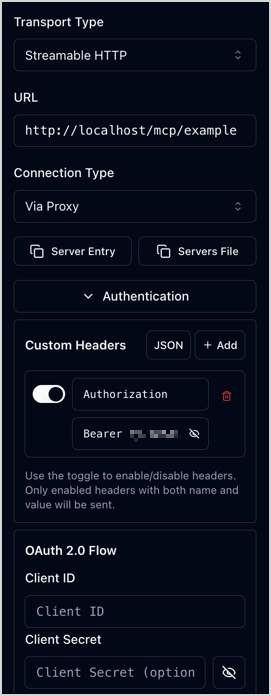
MCP server test within MCP Inspector
In the right panel, in the Tools tab, click List Tools button in the left column.
The greet tool appears preceded by its icon.
It can be selected and tested in the right column.
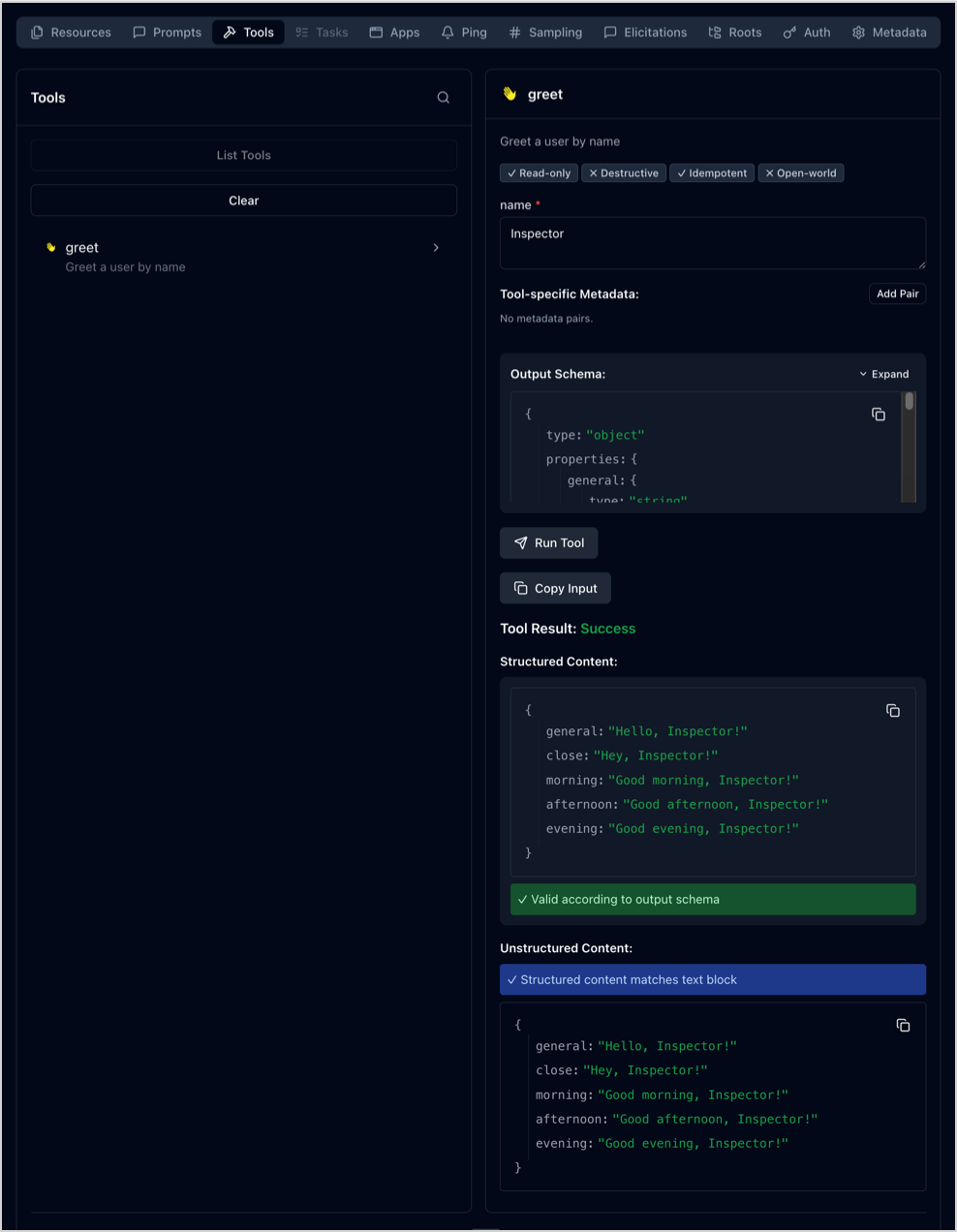
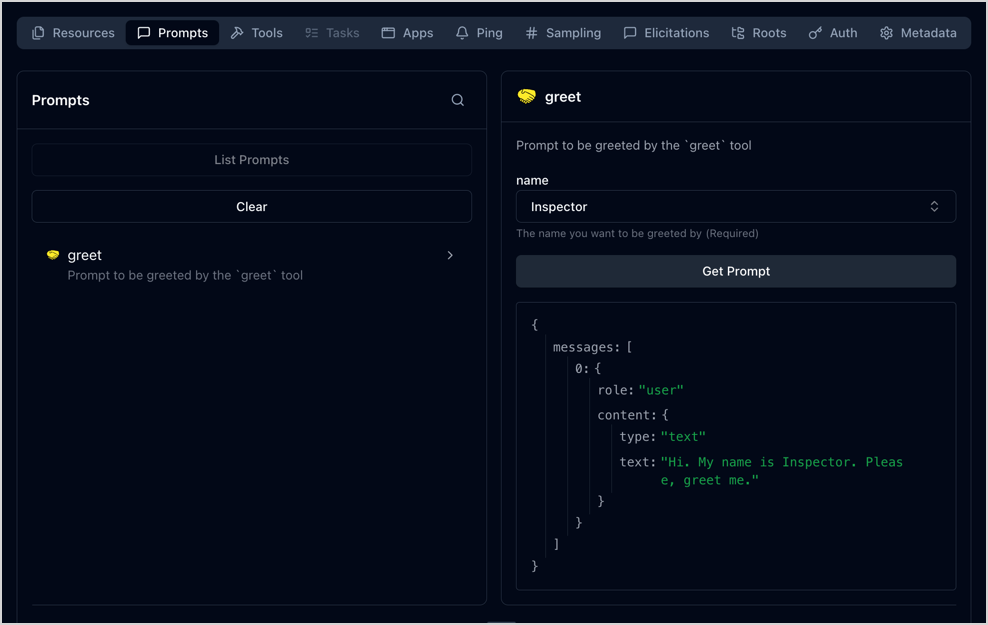
In the Prompts tab, click List Prompts button in the left column.
The greet prompt appears preceded by its icon.
It can be selected and tested in the right column.
Copilot CLI test
MCP server addition to Copilot CLI
For this example test with Copilot CLI,
the MCP server configuration is done in an .mcp.json file at the Ibexa DXP project root
to make it only available for a session opened from there.
There is two ways of dealing with the JWT token for this test:
- to hard code the JWT token in the configuration and update it at every expiration
- to wrap JWT token request and MCP server call into a script
Hard coded
The hard coded JWT token configuration in .mcp.json:
1 2 3 4 5 6 7 8 9 10 11 12 | |
The .mcp.json file must be edited to update the JWT token each time it expires.
You can ask a token using, for example, GraphiQL web interface or a curl command, then edit the file manually.
Or you can have a shell script doing the JWT token request, extracting it from the response, and replace it in the file.
When Copilot complains that it can't communicate with the MCP server:
- update the JWT token in the
.mcp.jsonfile - reload the MCP servers in Copilot CLI with one of those methods:
- run
/mcp reloadcommand which reload all MCP servers - run
/mcp disable ibexa-examplethen/mcp enable ibexa-exampleto only reload theibexa-exampleserver
- run
Fully scripted
The wrapping script configuration in .mcp.json:
1 2 3 4 5 6 7 8 9 10 | |
The mcp-ibexa-example-wrapper.sh is a script asking for a JWT token then establishing a connection with the MCP server.
For example, this can be achieved with Supergateway without local installation thanks to npx:
1 2 3 4 5 6 7 8 9 10 11 12 13 14 15 16 17 18 19 20 21 | |
When Copilot complains that it can't communicate with the MCP server, reload the MCP servers in Copilot CLI with one of those methods:
- run
/mcp reloadcommand which reload all MCP servers (which can be annoying if you have several MCP servers globally enabled) - run
/mcp disable ibexa-examplethen/mcp enable ibexa-exampleto only reload theibexa-exampleserver
MCP server test with Copilot CLI
Launch Copilot CLI at the project root (where the .mcp.json file is located):
1 2 | |
If needed, confirm that you trust the files in this folder when prompted (with or without remembering the answer for the future).
With the command /mcp show ibexa-example, you can check server status and details:
1 2 3 4 5 6 7 8 9 | |
You can prompt Copilot to greet you. It should take the initiative to use the greet tool to do so.
- You can ask it "Please, greet me." and it might ask you your name if it doesn't already know it.
- You can additionally give it a name to greet (like in the prompt template).
During a morning session, the interaction could look like this:
1 2 3 4 5 6 7 8 9 10 11 12 13 14 15 16 17 18 19 20 21 22 23 24 25 26 27 28 29 30 31 32 33 34 35 36 37 38 39 40 | |
The Copilot reflexion and its final answer, like the improvised emoji, might differ from this session example.
The important part is that Copilot CLI thinks to use the greet tool, calls it with the right argument, displays the call result, and uses it.